February 22, 2026 by Ewell Smith
Most people build a Google survey to collect feedback. That's fine — but if you're in sales or marketing, a survey can do a lot more than gather opinions. The right survey reveals buying intent, surfaces objections before they kill a deal, and gives you the exact language your customers use to describe their own problems.
This guide covers how to build one in Google Forms from scratch — plus the strategy that turns survey data into revenue. Whether you've been searching for how to create a survey in Google or how to build a survey in Google Docs, you're in the right place.
First: Google Forms vs. Google Docs — What's the Difference?
A lot of people search for how to create a survey on Google Docs or how to build a survey in Google Docs. Here's the clarification: you can't build a functional, response-collecting survey inside Google Docs. Docs is a word processor. Surveys live in Google Forms.
Here's how the two tools work together effectively:
• Use Google Docs to draft and refine your questions with your team before going live.
• Use Google Forms to build, publish, and collect responses from the actual survey.\
A smart workflow: wordsmith your questions in Docs first, collaborate with teammates on the wording, then port the final version into Forms. This prevents the messiness of editing a live survey.
How to Create a Google Survey: Step-by-Step
Step 1: Open Google Forms
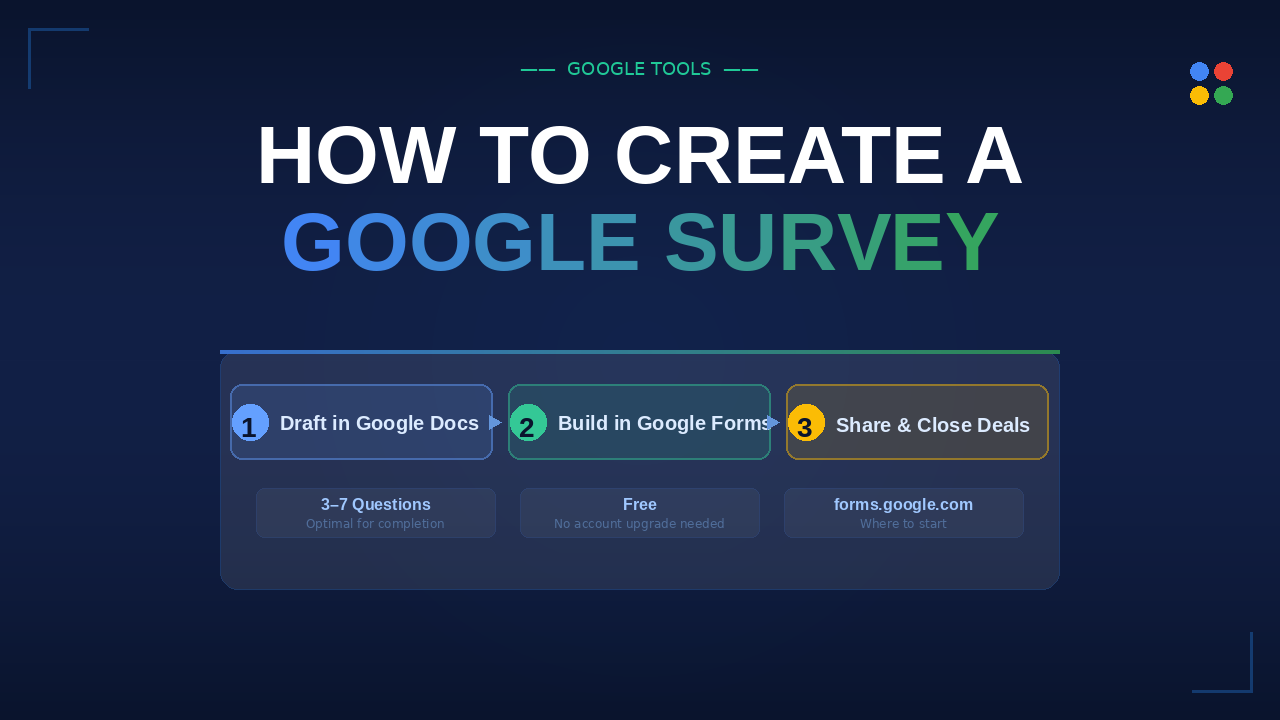
Go to forms.google.com, or open Google Drive and click New → Google Forms. Start from a blank form - templates are too generic for sales use cases and will slow you down.
Step 2: Name Your Survey Strategically
Your title is the first thing respondents see. Vague names kill completion rates. Compare:
• "Customer Feedback Form" - forgettable, easy to ignore.
• "Quick 3-Minute Survey: Help Us Understand Your Experience" — specific, low-commitment, action-oriented.
Specificity signals that you respect their time. That framing alone boosts completion rates.
Step 3: Add the Right Questions
Click the + icon on the right side to add questions. Google Forms supports multiple choice, short answer, paragraph, dropdown, linear scale, and checkboxes. For sales surveys, the rule is simple: 3 to 7 questions maximum. Every question you add beyond that drops your completion rate. Choose only what you'll actually act on.
Step 4: Adjust Your Settings
Click the gear icon. Key decisions to make:
• Collect email addresses if you want follow-up ability — but this reduces anonymity and can suppress honest answers.
• Limit to one response per person to prevent data skew.
• Go anonymous if you want unfiltered feedback — you'll often get more truth.
Know your goal before you configure. A post-purchase satisfaction survey and a prospect research survey have different needs.
Step 5: Share It
Hit Send. You can email it directly, copy a shareable link, embed it on your site as HTML, or generate a QR code. For post-purchase surveys, a link in your order confirmation email works best. For prospect research, consider embedding it on a relevant landing page.
The Strategy: 7 Questions That Actually Move Deals
Here's where most survey guides stop short. They tell you how to build the form but not what to ask. If your goal is revenue, your questions need to uncover why people buy, why they hesitate, and what language they use to describe their own problem because that language belongs in your ads, your landing pages, and your sales scripts.
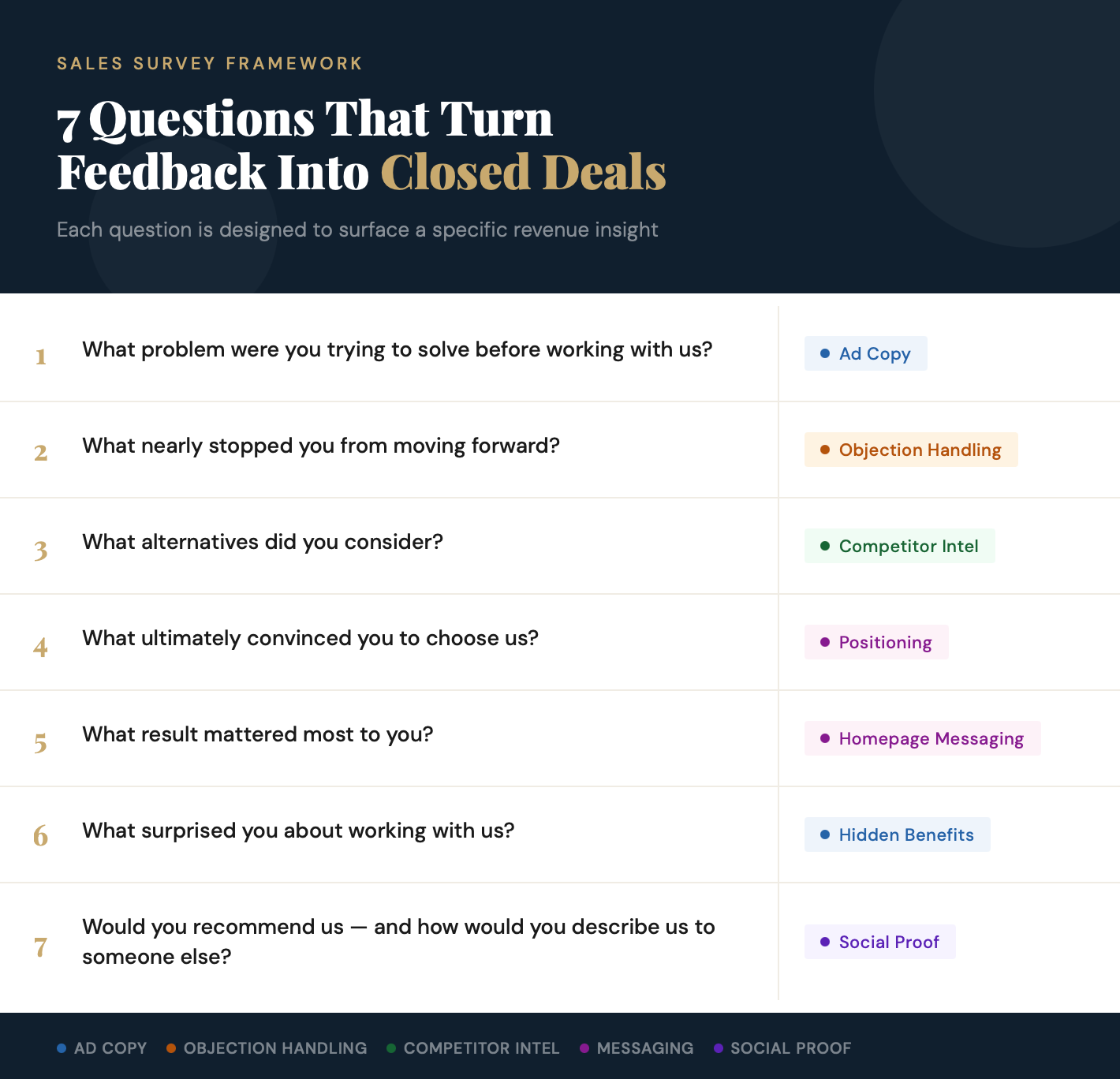
These seven questions do exactly that:
1. What problem were you trying to solve before working with us?
Reveals how they describe the pain to a friend. Use this language in your top-of-funnel copy and ad headlines.
2. What nearly stopped you from moving forward?
Surfaces your most common objections so your team can address them earlier in the sales cycle.
3. What alternatives did you consider?
Tells you who you're really competing against — often not the competitors you think.
4. What ultimately convinced you to choose us?
Your actual competitive advantage — often different from the one marketing thinks you have.
5. What result mattered most to you?
Strips away features and gets to the outcome they were buying. Gold for homepage messaging.
6. What surprised you about working with us?
Reveals benefits your team is delivering but not actively promoting.
7. Would you recommend us, and if so, how would you describe us to someone else?
Gives you testimonial language in the customer's own words — ready for your website.
The answers to these questions become sales script improvements, landing page copy, objection-handling language, ad messaging, and testimonial hooks. This is where a free survey form becomes a real revenue asset.
Turning Survey Data Into Closed Deals
Collecting responses is the easy part. Here is how to operationalize what you learn:
• If 30% or more of respondents cite the same objection — say, pricing clarity — your sales team needs a better value framing script, and your pricing page probably needs a rewrite.
• If customers keep mentioning a benefit you're not advertising, test it as a headline. Customer-articulated benefits consistently outperform internally-invented ones.
• If the same competitor keeps appearing in the alternatives question, build a direct comparison page targeting that specific competitor.
Export your responses to Google Sheets — it's built in with Forms — and review them monthly. Look for patterns, not individual data points. That's where the signal is.
Google Forms vs. Typeform vs. SurveyMonkey
For most small to mid-size teams, Google Forms is the right starting point. Here's how the options compare:
• Google Forms: Free, simple, seamless Google Workspace integration. Not the most polished design, but it works reliably. Best for teams already in the Google ecosystem.
• Typeform: More visual, conversational format that feels less like a survey and more like a conversation. Higher perceived quality. Paid plans required for most useful features — worth the upgrade if design matters to your brand.
• SurveyMonkey: Enterprise-grade analytics and branching logic. Overkill for most sales teams, but valuable if you're running large-scale NPS programs with a dedicated analytics function.
Start with Forms. If you hit its limits, upgrade to Typeform. Save SurveyMonkey for when you have a team that can actually use its features.
5 Mistakes That Kill Survey Response Rates
1. Too many questions.
Surveys with 10+ questions see significantly lower completion. If you can't cut it to 7 or fewer, run two separate surveys targeting different segments.
2. Vague questions that produce useless data.
How was your experience? generates noise. What nearly stopped you from moving forward? generates insight.
3. Leading the respondent.
Questions like How much did you enjoy working with us? prime positive responses. Ask neutrally and let the answers surprise you.
4. No follow-up plan.
If someone says they almost didn't buy because of a specific concern, that's a sales call waiting to happen. Have a process for acting on responses, not just reading them.
5. Collecting data and doing nothing with it.
This is the most common mistake. A survey you don't act on is vanity data. Schedule a monthly 30-minute review to find the patterns and translate them into specific actions.
FAQ
How do you create a survey in Google?
Go to forms.google.com, create a new blank form, add your questions, configure your settings, and share via link or email. The whole process takes under 15 minutes.
Can you build a survey in Google Docs?
Not a functional one. Use Google Docs to draft and refine your questions with your team, then move them into Google Forms to publish and collect responses.
Is Google Forms free?
Yes. Google Forms is free with any Google account.
How many questions should a survey have?
3 to 7 for the best completion rates. More than 10 and you'll see significant drop-off.
What is the difference between a survey by Google and Google Forms?
These are often used interchangeably. Google Forms is the free tool for creating surveys. Google also has Google Surveys, a separate paid market research product, but for most business uses, Forms is what you want.
The Bottom Line
Learning how to create a Google survey takes about 10 minutes. Building one that improves your close rate takes a little more thought - but not much more effort. The difference is asking the right questions and actually using the answers.
Check out the Mozi Mindset
Subscribe



Laid off?
Not valued?
Ready to exit?
Discovered ageism
is real?
Be The Boss.
Close The Deal on
Your First Franchise
Claim Your Free Copy

About the Author Ewell Smith is the publisher of CloseTheDeal.com, host of the Close The Deal Podcast, and author of Your First Franchise Roadmap and Pink Slip Comeback